The Repairs Advisor's repairs manual may be provided as a ZIP file to reduce its size and package multiple files together. To access the content inside, you'll need to unzip this ZIP file. Here are the detailed steps for both Windows and macOS, along with instructions on using popular unzipping software and their download links:
I. On Windows Operating Systems:
Windows has a built-in tool for working with ZIP files, but third-party software often offers more features.
Method 1: Using the Built-in Windows Tool:
- Method 1 (Extract All): Right-click the ZIP file, then select Extract All.... A dialog box will appear allowing you to choose a location to save the extracted files. Click Extract. The files will be extracted to a new folder with the same name as the ZIP file in the location you selected.
- Method 2 (Quickly view contents and selectively extract): Double-click the ZIP file. A new File Explorer window will open, displaying the contents of the ZIP file as if it were a normal folder. You can copy specific files or folders from here to another location by dragging and dropping or using copy/paste commands.
Method 2: Using Third-Party Unzipping Software:
A. WinRAR:
WinRAR is a powerful commercial archiving tool with advanced features and support for various compression formats. You can use it for free on a trial basis.
- Locate the ZIP file: Open File Explorer and navigate to the ZIP file.
- Unzip the file:
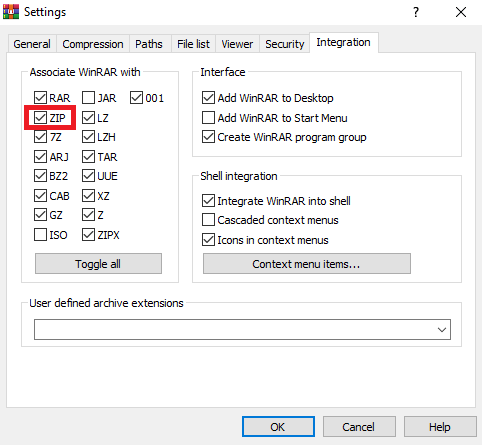
If you have a ZIP file to open, make sure that the ZIP file extension is ticked in the WinRAR integration panel:
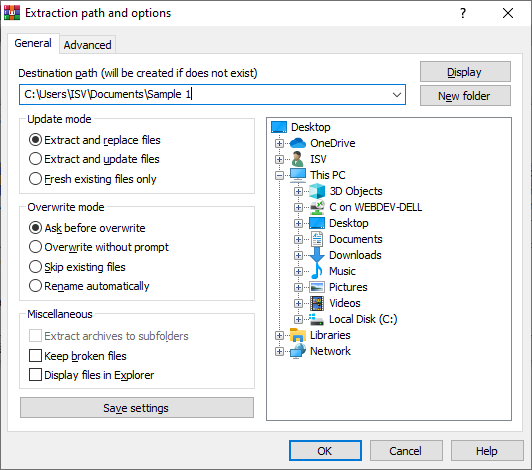
Double-click on the file and it will be displayed in WinRAR. Select the files that you want to open/extract and click on the "Extract To" icon at the top of the WinRAR window.
Click "OK" and your ZIP file will be saved in your destination folder!
WinRAR Download Link: https://www.rarlab.com/download.htm (Choose the version appropriate for your system)
B. 7-Zip:
7-Zip is a free and open-source archiving tool that is powerful and supports numerous compression formats.
- Locate the ZIP file: Open File Explorer and navigate to the ZIP file.
- Unzip the file:
- Method 1 (Extract to current folder): Right-click the ZIP file, hover over 7-Zip and select Extract Here.
- Method 2 (Extract to folder with same name): Right-click the ZIP file, hover over 7-Zip and select Extract to "[ZIP file name]\".
- Method 3 (Extract with advanced options): Right-click the ZIP file, hover over 7-Zip and select Open archive. The 7-Zip window will display the contents of the ZIP file. You can select the files/folders to extract and click the Extract button. A dialog box will appear for you to choose the destination path and other options.
- 7-Zip Download Link: https://www.7-zip.org/download.html (Choose the 32-bit or 64-bit version suitable for your system)
II. On macOS Operating Systems:
macOS has a built-in tool called Archive Utility for handling ZIP files.
Method 1: Using Archive Utility (Built-in Tool):
- Method 1 (Simple Unzip): Double-click (or single-click depending on settings) the ZIP file. Archive Utility will automatically unzip the files to a new folder with the same name as the ZIP file in the same folder.
- Method 2 (Unzip using the right-click menu): Right-click (or Control-click) the ZIP file, hover over Open With, and select Archive Utility.app. The files will unzip to a new folder.
Method 2: Using Third-Party Unzipping Software:
Similar to Windows, there are third-party decompression software for macOS that offer more features.
A. The Unarchiver:
The Unarchiver is a free utility that supports more archive formats than the built-in Archive Utility.
- Locate the ZIP file: Open Finder and navigate to the ZIP file.
- Unzip the file:
- Method 1 (Simple Unzip): Double-click the ZIP file. The Unarchiver will unzip the files into a new folder with the same name.
- Method 2 (Unzip with Options): Right-click (or Control-click) the ZIP file, hover over Open With, and select The Unarchiver. You can configure the unzip options in The Unarchiver's settings.
- The Unarchiver Download Link (from the Mac App Store): https://apps.apple.com/us/app/the-unarchiver/id425424353
B. Keka:
Keka is a free and open-source file compression and extraction tool with a simple interface and support for many formats.
- Locate the ZIP file: Open Finder and navigate to the ZIP file.
- Unzip the file: (Steps are the same as in the previous English guide)
- Keka Download Link (from the official website): https://www.keka.io/en/download
III. After Unzipping:
Once you have successfully unzipped the ZIP file, a new folder will be created (usually with the same name as the ZIP file). Open this folder, and you should find the Repairs Advisor's repairs manual PDF file (or possibly other related files and folders). You can now open the PDF file following the instructions provided in the previous guide.
Tips:
- Always download software from trusted sources to avoid malware. The links provided above are the official download pages for the respective software.
- During the installation of third-party software, pay attention to any offers to install unwanted software and deselect them if necessary.
- If you encounter any issues during the unzipping process, check if the ZIP file was downloaded completely and without errors.
Hopefully, this updated guide will be even more helpful for you! If you have any other questions, feel free to ask.